

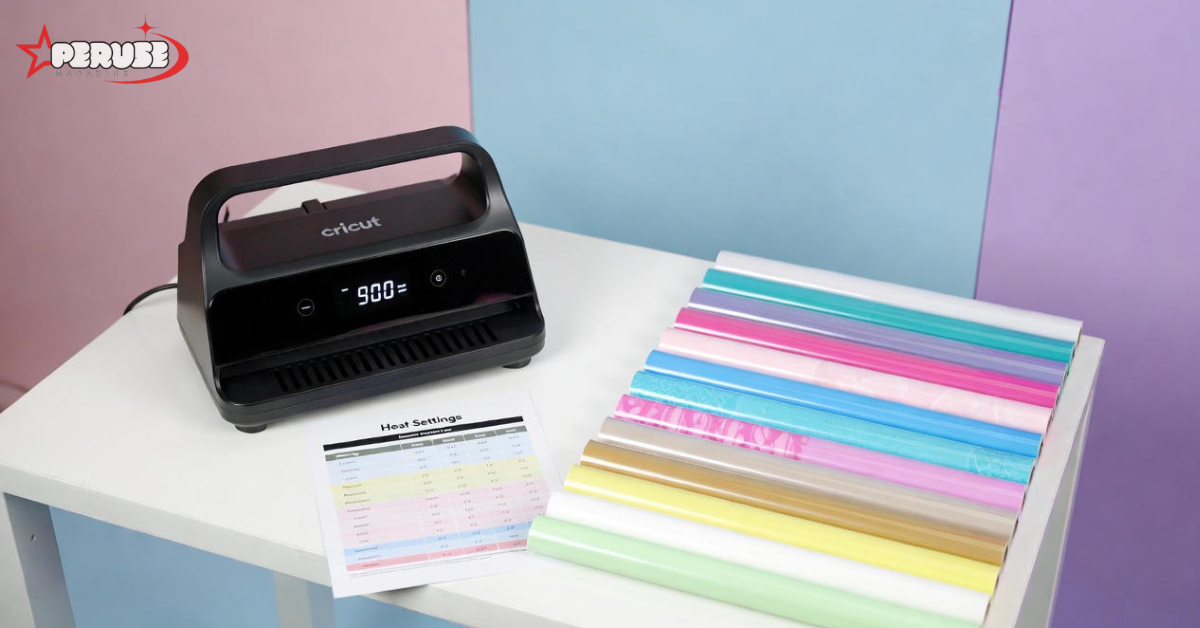
There is nothing more frustrating than weeding a perfect design, pressing it onto a brand-new shirt, and watching it peel right off in the wash. The difference between a professional-looking product and a crafting disaster often comes down to one thing: the settings. Whether you are using a standard iron, the EasyPress line, or the heavy-duty Autopress, precision is non-negotiable.
This is where the Cricut heat guide becomes the most essential tool in your craft room. It acts as the bridge between your materials and your machine, removing the guesswork from heat transfer projects. In this comprehensive resource, we will break down exactly how to use this guide, provide the master settings for every material type, and troubleshoot the common issues that plague even experienced crafters.
What is the Cricut Heat Guide?
The Cricut heat guide is an online reference tool designed by Cricut to provide users with the exact time, temperature, and pressure required for specific combinations of heat press machines and materials. Because different materials react to heat differently some require a gentle warm-up while others need a blast of high heat relying on a “one size fits all” approach is a recipe for ruined blanks.
This tool is especially vital because Cricut releases new materials regularly, such as Smart Iron-On or new Infusible Ink formulas, which often have different requirements than the standard products you might be used to.
How to Use the Official Interactive Tool
Using the interactive version is simple, but knowing the nuances helps you get better results.
- Select your machine. Are you using an EasyPress 2, EasyPress 3, the Mini, or perhaps the Autopress?
- Select your base material. This is what you are putting the design onto. A 100% cotton t-shirt requires different settings than a polyester blend or a canvas tote bag.
- Select your heat transfer material. This is the actual vinyl or ink you are applying.
- Follow the prompts. The tool will then display the recommended temperature, time, and whether you should do a hot or cold peel.
Supported Heat Press Machines
The guide is not just for the EasyPress. It covers the entire ecosystem of Cricut heat tools:
- EasyPress (Original, 2, and 3): The standard handheld heat presses.
- EasyPress Mini and Mini LT: Smaller, cordless tools for odd-shaped items.
- Cricut Autopress: The large, industrial-style machine for serious crafters.
- Cricut Mug Press: A dedicated press for sublimation mugs.
- Cricut Hat Press: Designed specifically for caps and curved brims.
The Three Pillars of Successful Heat Transfer
To understand why the Cricut heat guide works, you have to understand the physics of heat transfer. There are three distinct variables you must control. If even one is off, the project fails.
Temperature: Matching Heat to Material Chemistry
Temperature refers to how hot the plate gets. Different materials have specific melting points or activation temperatures.
- Everyday Iron-On typically requires medium heat (around 315°F).
- Infusible Ink requires high heat (usually 400°F) to trigger the sublimation process.
- If the temperature is too low, the adhesive won’t activate. If it is too high, you will scorch the fabric or melt the vinyl into a gooey mess.
Time: Ensuring Proper Activation
Time is the duration the heat plate stays in contact with the material.
- Too short: The adhesive doesn’t have enough time to bond to the fibers.
- Too long: You risk “over-cooking” the material, which makes the vinyl brittle or causes it to shrink and peel later.
- The Cricut heat guide usually specifies times in 5-second increments. Stick to these rigidly.
Pressure: The Critical Variable
Pressure is often the most overlooked pillar. It dictates how forcefully the plate presses down.
- Light Pressure: Used for delicate fabrics or materials like foil that can crack if smashed too hard.
- Firm Pressure: Used for thick materials like canvas or when applying multiple layers.
- When using an EasyPress, you must apply physical downward pressure. When using the Autopress, the machine handles this for you, but you must ensure the material isn’t too thick for the lock to engage.
Cricut EasyPress Settings Master Chart (Iron-On & HTV)
The EasyPress is the most common tool for crafters. Below is a breakdown of the settings you will find in the standard cricut easypress heat guide for the most popular materials. Always assume you are using the “Firm” pressure setting unless otherwise noted.
Everyday Iron-On Variations
This is your standard HTV (Heat Transfer Vinyl). It is the most versatile and easiest to weed.
- Everyday Iron-On: 315°F for 30 seconds (Warm Peel).
- Everyday Iron-On (Lite): 315°F for 30 seconds (Warm Peel). This is thinner and great for lighter fabrics.
- SportFlex Iron-On: 315°F for 30 seconds (Warm Peel). Designed for polyester and nylon, which have lower heat tolerances.
- Smart Iron-On: 315°F for 30 seconds (Warm Peel). This works without a mat, but the heat settings remain the same.
Specialty and Textured Finishes
Specialty materials often have a carrier sheet that is more sensitive to heat or a texture that requires careful handling.
- Glitter Iron-On: 330°F for 30 seconds (Cold Peel). Glitter needs a slightly higher temp to melt the glitter particles into the adhesive.
- Holographic Iron-On: 330°F for 30 seconds (Cold Peel). Similar to glitter, the holographic finish is damaged by heat, so you must wait for it to cool completely before peeling.
- Flocked Iron-On: 300°F for 20 seconds (Cool Peel). Too much heat will flatten the fuzzy flock texture.
- Patterned Iron-On: 340°F for 30 seconds (Warm Peel). These often have a thicker top layer.
- Metallic Iron-On: 340°F for 30 seconds (Cold Peel). Requires high heat to get the shine to adhere correctly.
Printable and Puff Materials
These are advanced materials that behave very differently from standard vinyl.
- Printable Iron-On: 310°F for 20 seconds (Warm Peel). Ensure you are using the correct printer (inkjet) and let the ink dry fully before pressing.
- Cricut Puff Iron-On: 315°F for 40 seconds (Cold Peel). This material actually expands and puffs up during the heating process.
- Metallic Puff Iron-On: 315°F for 40 seconds (Cold Peel).
Cricut EasyPress Mini and Autopress Guides
While the standard EasyPress relies on a digital display, the Mini and Autopress operate a bit differently. Using the cricut easypress settings chart helps translate these numbers into action.
EasyPress Mini: Navigating the Three Settings
The EasyPress Mini does not have an adjustable temperature dial. Instead, it has three distinct heat settings accessible by clicking the power button.
- Low Heat (Level 1): roughly 275°F. Use this for Cricut Infusible Ink Coasters and very delicate items like shoes or stuffed animals.
- Medium Heat (Level 2): roughly 330°F. This is the “sweet spot” for standard Iron-On (HTV) projects.
- High Heat (Level 3): roughly 400°F. Used exclusively for Infusible Ink on t-shirts and totes.
- Time: Unlike the large EasyPress, the Mini does not have an automatic timer. You must watch the clock yourself. Generally, count to 25-30 seconds for vinyl and 40-60 seconds for Infusible Ink, moving the press slowly in small circles to cover the design.
Cricut Autopress: Settings for Production
The Autopress is a beast designed for mass production.
- Temperature Range: It adjusts between 170°F and 400°F.
- Time: Can be set in 5-second increments.
- Pressure: The most unique feature. The handle changes color to green when you have locked it into the correct pressure zone.
- Usage: When using the cricut autopress heat guide, remember that it heats from the top and the bottom (if using the included insulation mat). This can sometimes reduce the required press time by 5-10 seconds compared to an EasyPress, but it is safer to stick to the official recommended times until you are comfortable with the machine.
Mastering Infusible Ink Settings
Infusible Ink is not vinyl; it is ink. When heated, it turns into a gas that bonds permanently with the fibers of polyester. This makes it permanent, but it also makes it much less forgiving. A comprehensive cricut heat guide infusible ink section is necessary because mistakes here cannot be undone.
The Science of Sublimation Transfer
Because the ink becomes a gas, it must have polyester to bond with.
- 100% Polyester Blanks: The best results. The ink becomes part of the fabric and will not peel, crack, or fade.
- Cotton Blends: The ink only bonds to the polyester threads. On a 50/50 blend, the design will look slightly vintage or faded because the cotton threads remain white. This is not a defect; it is the nature of the material.
- Butcher Paper: You must use butcher paper (or the paper that comes with the blanks) to protect the top of your design and soak up excess moisture.
Infusible Ink Transfer Sheets vs. Pens & Markers
- Transfer Sheets: These are pre-printed designs on solid sheets.
- EasyPress Settings: 400°F for 40-60 seconds (Cool Peel).
- Autopress Settings: 385°F for 60 seconds (Cool Peel).
- Pens and Markers: You draw your own design on regular laser copy paper.
- EasyPress Settings: 400°F for 40-60 seconds (Cool Peel).
- Note: The settings are similar, but Transfer Sheets generally require a slightly more aggressive application to ensure the carrier sheet releases the ink fully.
Compatible Blanks and Project Types
- Coasters: These require the EasyPress Mini on High heat. You must use the Coaster Pressing Tray to direct the heat upward.
- Mugs: Use the Cricut Mug Press. No temperature setting is needed; it handles the timing and heat automatically. Press for about 6 minutes (the light will turn off when done).
- Totes and T-shirts: Always use a lint roller before starting. Any dust or lint under the transfer will become a permanent part of the design because the ink seals it in.
How Base Material Affects Your Settings
One of the biggest mistakes crafters make is looking up the vinyl settings but ignoring the base material. A cricut heat guide for iron-on is only half the equation; the base material dictates the other half.
Common Fabrics
- 100% Cotton: Can tolerate high heat (up to 400°F). It is the most forgiving material.
- Polyester: Has a low melting point. If you press it at 400°F, you risk melting “shiny spots” into the fabric. If using Infusible Ink on polyester, ensure you use a protective layer like butcher paper or a pressing cloth to protect the fibers outside the design area.
- Nylon and Spandex: Very sensitive to heat. Always use a lower temperature and increase the time slightly. If you try to rush it with high heat, you will melt the synthetic fibers.
Unconventional Surfaces
- Wood: You can apply iron-on to wood, but wood is dry. It needs moisture to help the adhesive. Lightly dampen the wood with a paper towel before pressing. Use a standard cotton setting (around 315°F) and press longer (about 60 seconds).
- Leather (Faux): Can handle heat, but real leather can be damaged. Use a low setting (300°F) and a protective sheet (Teflon or parchment paper) to prevent sticking and shine marks.
- Canvas: Tote bags often have a textured side and a smooth side. Press on the smooth side. If the texture is heavy, use the “Firm” pressure setting to smash the texture down so the vinyl sits flush.
Troubleshooting Common Heat Transfer Issues
Even with the best cricut heat guide printable chart taped to your wall, things go wrong. Here is how to fix the most common problems using logic rather than panic.
Adhesion Problems
- Vinyl peeling after one wash: This is almost always a temperature or time issue. The adhesive wasn’t fully activated.
- Fix: Try re-pressing the design. Cover it with a Teflon sheet and press again at the same temperature for another 10-15 seconds. This re-activates the glue without needing to weed a new design.
- Vinyl not sticking to the carrier sheet when weeding: This means you pressed the design onto the mat or applied too much heat when pre-heating the material (if using Infusible Ink).
- Design is stuck to the heat plate and not the shirt: You forgot to mirror your image. Also, you may have peeled the carrier sheet too quickly.
Aesthetic Defects
- “Branding” marks (Square outlines): This happens when the edges of the EasyPress are hotter than the center, or when the plate touches bare fabric outside the design.
- Fix: Use the Cricut Heat Pressing Mat (it has a grid that helps) and a protective cloth like the Cricut Protective Sheet if the fabric is sensitive.
- Scorch marks (Yellow/Brown stains): Common with polyester or rayon.
- Fix: Lower the temperature by 5-10 degrees. Increase the time by 10 seconds to compensate. Use a heavy cotton pressing cloth between the EasyPress and the garment.
- Glossy finish on fabric: This occurs when you press directly on a fabric with a smooth plate.
- Fix: Always use a Teflon sheet, parchment paper, or the butcher paper included with your materials.
Infusible Ink Specifics
- Ghosting (Faint shadows around the design): This is excess ink vapor that didn’t have anywhere to go.
- Fix: Always use fresh butcher paper. Ensure the paper is larger than the EasyPress plate on all sides.
- Dull colors: Usually caused by the blank not being 100% polyester or a heat plate that is losing temperature accuracy.
Printable Cricut Heat Guide Cheat Sheet
While looking up the official cricut heat guide online tool is great when you have your computer nearby, it is not ideal for a busy craft room. Wi-Fi fails, batteries die, and sometimes you just need a quick glance while holding a hot press.
Why You Need an Offline Reference
A printed cheat sheet is a safety net. It ensures you never guess the settings.
- Quick Reference: A simple chart listing “Glitter,” “Everyday,” “Foil,” and “Infusible Ink” with their corresponding temps.
- Visual Aid: You can laminate it and keep it right next to your machine.
- Consistency: If you make products to sell, using the same settings every time ensures customer satisfaction.
Downloadable Master Chart for EasyPress 2, 3, and Mini
We recommend creating or downloading a cricut heat guide pdf that focuses on the specific machines you own.
Simplified Text-Only Chart Reference:
| Material | EasyPress Temp | Time | Peel Type |
|---|---|---|---|
| Everyday Iron-On | 315°F | 30s | Warm |
| Glitter / Holographic | 330°F | 30s | Cold |
| Foil | 330°F | 30s | Cold |
| SportFlex | 315°F | 30s | Warm |
| Infusible Ink (Tote/Tee) | 400°F | 40-60s | Cold |
| Puff | 315°F | 40s | Cold |
(Note: Always double-check against the official Cricut Heat Guide as materials change.)
Conclusion
Mastering your heat press projects comes down to understanding the variables and respecting the materials. The Cricut heat guide is not just a suggestion; it is the result of extensive testing on the specific chemistry of Cricut products. By adhering to the recommended time, temperature, and pressure settings, and by understanding how your base material reacts to heat, you can drastically reduce project failures.
Whether you are working with a simple Everyday Iron-On decal or the complex chemistry of Infusible Ink, precision is your path to perfection. Keep this guide bookmarked, print out a cheat sheet for your wall, and always remember: when in doubt, check the settings before you press.
Frequently Asked Questions
Can I use the Cricut Heat Guide settings with a regular household iron?
Yes, but with caution. The guide usually offers settings for irons too. However, household irons do not heat as evenly or press as firmly as an EasyPress. You must ensure your iron has no water in it (steam is bad for vinyl) and that you press very hard for the full duration. You may need to increase the time slightly to compensate for the lack of pressure consistency.
Do I need to adjust the time if I am layering multiple iron-on colors?
Yes, but be careful. When layering, apply your base layer first. When you apply the second layer, cover the entire design with a protective sheet (like butcher paper) and press it again for the standard time. Do not just press the new piece; you need to seal the layers together. Do not use the “layering” guide as a rule to add more time per layer; re-pressing the whole design is usually sufficient.
Why do my settings differ from the official Cricut Heat Guide app?
Cricut updates their recommendations frequently based on user feedback and new manufacturing batches. If your old chart says 300°F but the app says 315°F, trust the app. The adhesive formulas have likely been updated to bond better at the new temperature.
What should I do if my EasyPress temperature drops when I press it onto the material?
This is normal, especially on the EasyPress Mini. The metal plate transfers heat to the cold item, causing a momentary drop. The machine is designed to recover quickly. Do not lift the plate; keep it in place. The “beep” on the EasyPress usually signals that it has reached the target temp again or the time is up, but if you see the light flicker, just hold it steady for the full duration.
Is it necessary to preheat my base material before applying the design?
Absolutely. Preheating removes moisture and wrinkles from the fabric, creating a smooth, dry canvas for the adhesive. Moisture is the enemy of a good bond. Preheat for 5-10 seconds, then place your design and proceed.